







Siteimprove Resources
What This Page Will Help You Do
This page helps UHCL web editors and content owners learn how to use Siteimprove to locate issues related to their web pages and documents.
By the end of this page, you should understand:
- How to access Siteimprove
- How the Siteimprove interface is organized
- Where to see issues connected to your content
- Which areas to use depending on what you are looking for
This guidance focuses on finding and reviewing issues, not fixing them.
Shared Responsibility
Maintaining accessible and accurate web content is a shared responsibility at UHCL. Siteimprove supports this process by helping surface potential concerns for review and addressed through the appropriate channels.Step 1: Access Siteimprove
- Log in to Siteimprove using your UHCL credentials.
- After logging in, you will land on the Siteimprove dashboard.
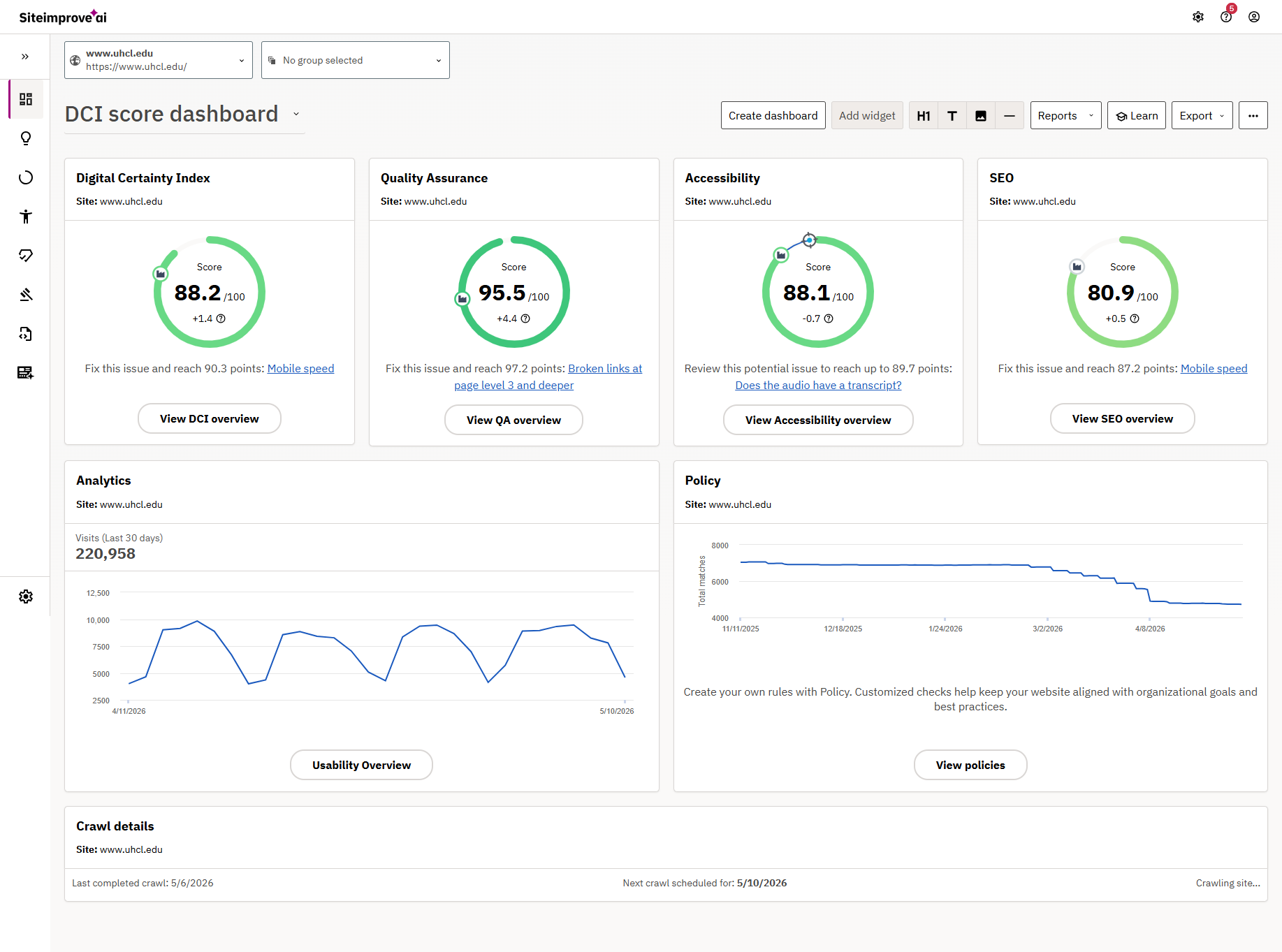
Step 2: Understand the Main Navigation
Siteimprove organizes issues into sections based on the type of review being performed. The left-hand navigation is the primary way to move between these areas.
From the navigation menu, you will see sections such as:
- Digital Certainty Index
- Accessibility
- Quality Assurance
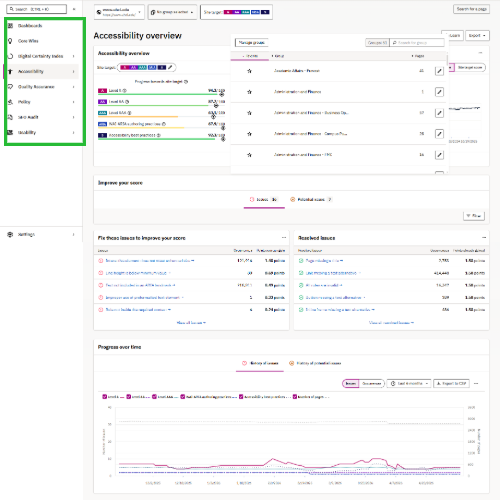
Each section shows a different type of issue related to your site content.
Step 3: Filter to Your Department Content (Groups)
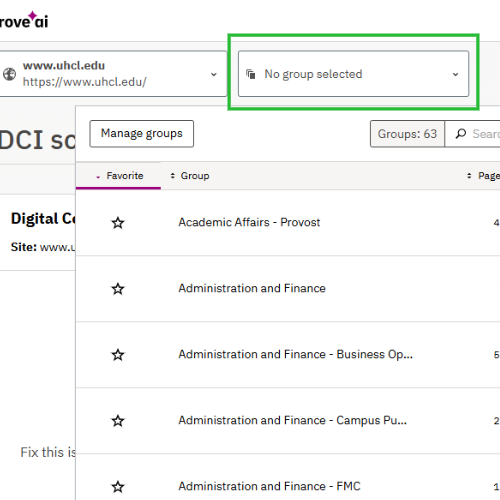
Before reviewing issues, confirm your department group is selected. To make sure you are only viewing pages that belong to your department, use the Group filter at the top of the screen.
At the top of most Siteimprove pages you will see a Group dropdown menu.
Use this dropdown to:
- Select your department's group
- Limit results to only the pages and files assigned to your area
This helps reduce unrelated results and ensures you are reviewing only content you are responsible for.
Step 4: Viewing Issues Related to Your Content
Most web editors will spend their time reviewing issues in the following areas, depending on what they are responsible for.
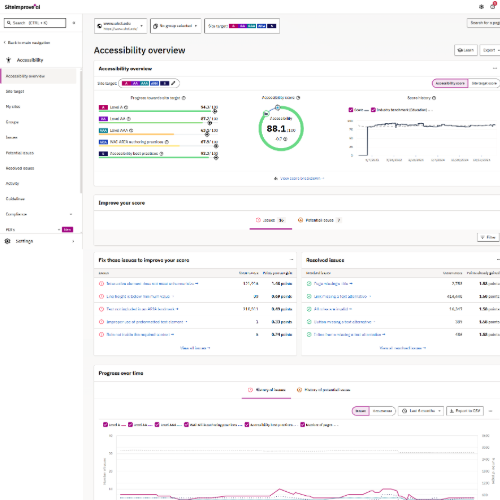
Accessibility
Use the Accessibility section to view issues that may affect users with disabilities. This includes items related to page structure, images, links, and content patterns.
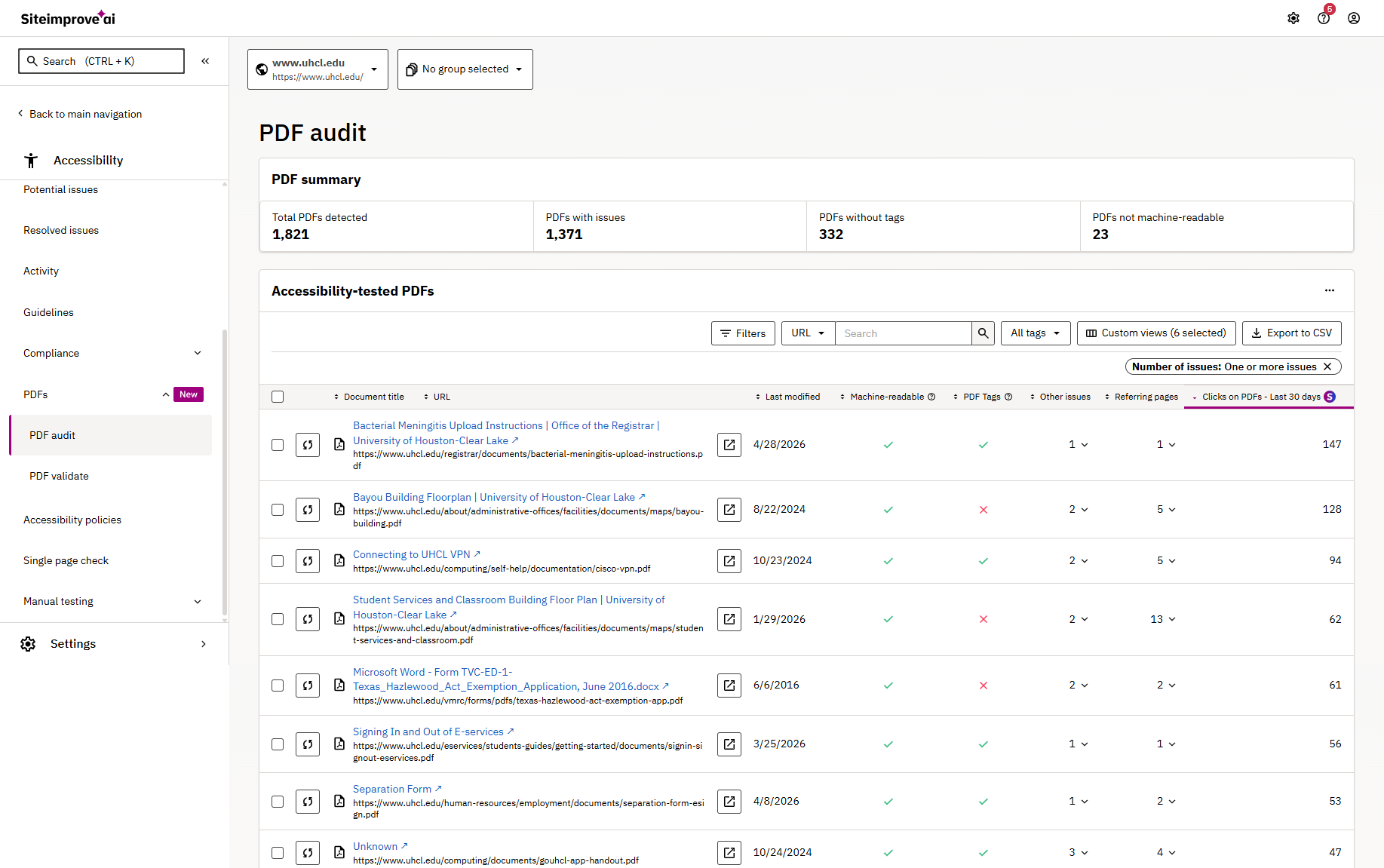
PDFs and Other Documents
Use the Documents section to locate:
- PDFs
- Word documents
- Other downloadable files linked from your pages
This area helps you identify documents that may not meet accessibility requirements.
Links and Quality Issues
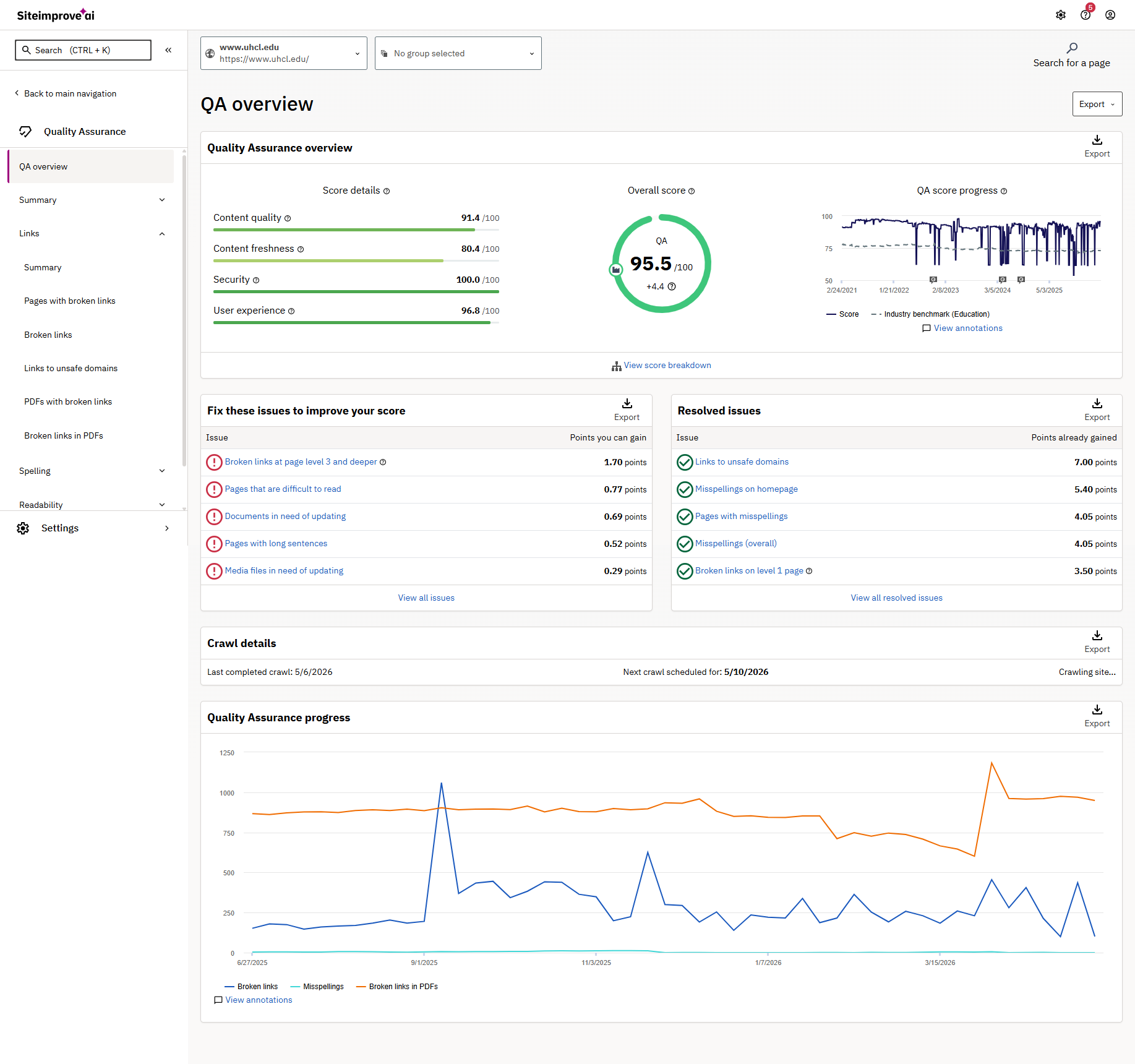
Use the Quality Assurance section to find:
- Broken links
- Misspellings
- Other basic content quality alerts
Step 5: Reviewing an Individual Issue
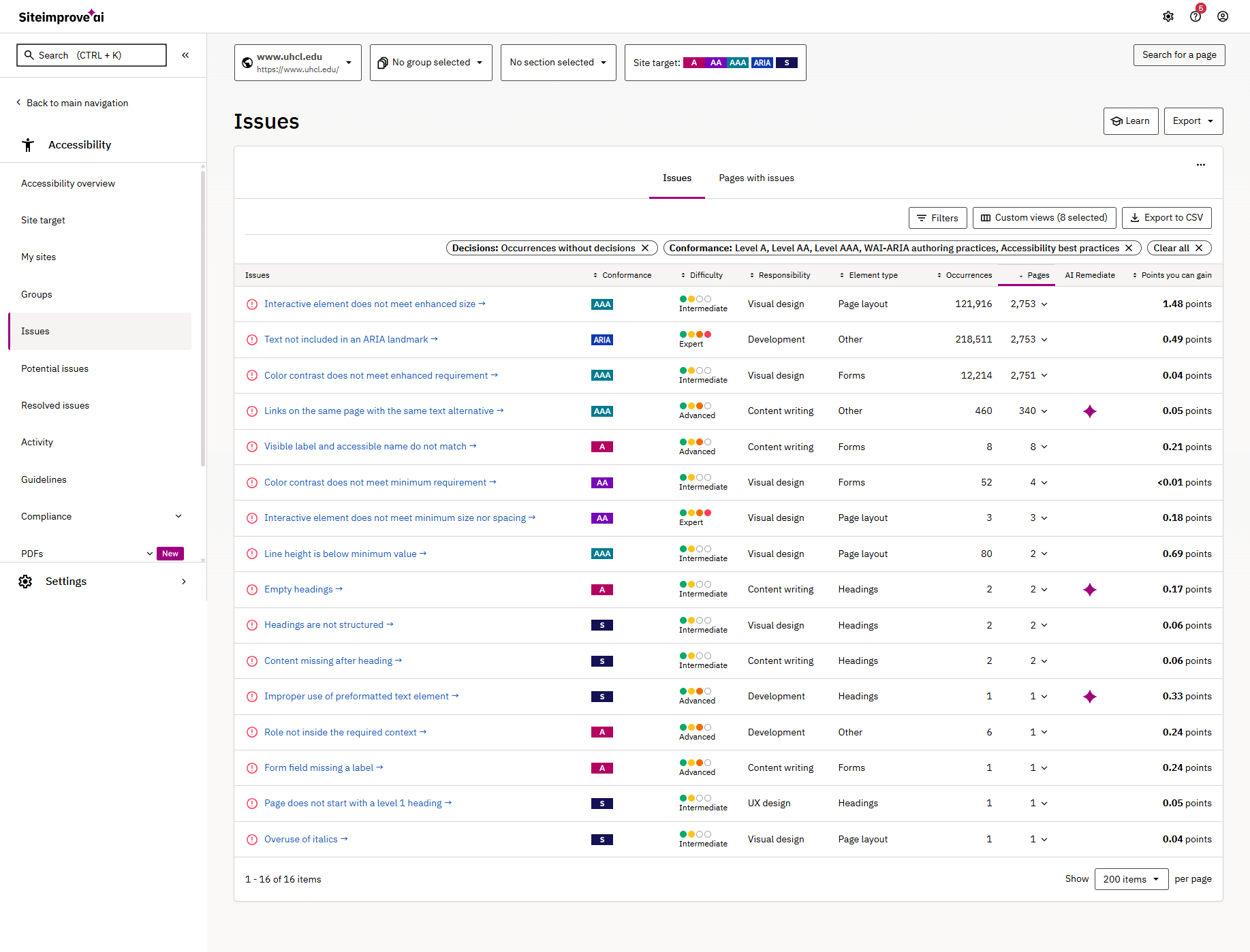
When you select an issue in Siteimprove, you can open it to view more details.
Issue details typically include:
- A description of the issue
- The pages or files affected
- Issue category and priority level
This information helps you understand where the issue exists and how it is categorized.
What to Do After You Locate an Issue
Once you have identified the issue:
- Confirm whether it applies to content you manage
- Note the issue type and priority
- Use the appropriate next steps based on UHCL guidance.
This Siteimprove section does not include instructions for fixing issues. Remediation guidance and hands-on training will be provided soon.